

How to Add the Google Preferred Sources Button to Your Website
To add the Google Preferred Sources button, check that your domain appears in Google’s source selector, add Google’s button code to your website and test it while logged out. In WordPress, a shared HTML snippet can place it at the end of every article automatically.
Put the advice into practice
Turn scattered marketing into a considered plan
Connect strategy, creative, channels and ongoing review around your sales process.
Explore our marketing services
Discuss an ongoing marketing partnershipThis guide walks through that setup, a direct-link alternative and the checks that catch common installation problems. The screenshots show a generic tutorial configuration, with account names, website addresses and business details cropped out.
What does Google Preferred Sources do?
Preferred Sources lets readers choose websites they want to hear from more often. Google can show fresh, relevant articles from those sites more often in a reader’s Top Stories and highlight their preferred sources in AI Overviews and AI Mode. The preference belongs to the reader. It is not a promise of higher rankings for everyone. See Google’s explanation of source preferences.
Before you start: check your website is eligible
- Open Google’s source preferences tool.
- Search for the domain readers actually use, such as
example.com. - Check that the correct website appears before promoting the button.
Google supports domains and subdomains, such as example.com and news.example.com. A folder such as example.com/blog cannot be selected separately. Google also notes that sources which are not updated regularly may be unavailable. The definitive check is whether your website appears in the selector. Read Google’s publisher guide.
For appearance as a preferred source in Google’s AI features, also check the property’s Search generative AI setting in Search Console. Google says the site must be included. An authorised property owner can review this under Settings. Read Google’s AI control guidance.
How to add the button to every WordPress article
The walkthrough below uses WPCode Lite. If your website already has a suitable code manager or an article-template editing feature, use that instead of adding another plugin. Keep a recoverable copy of the current configuration before changing a shared template.
Step 1: create an HTML snippet
In the WordPress dashboard, open Code Snippets → Add Snippet → Add Your Custom Code. Choose HTML Snippet and give it a clear name, such as “Preferred Sources button after articles”.
Use HTML for the example below. You do not need to edit a PHP theme file.
Step 2: paste the preferred-source button code
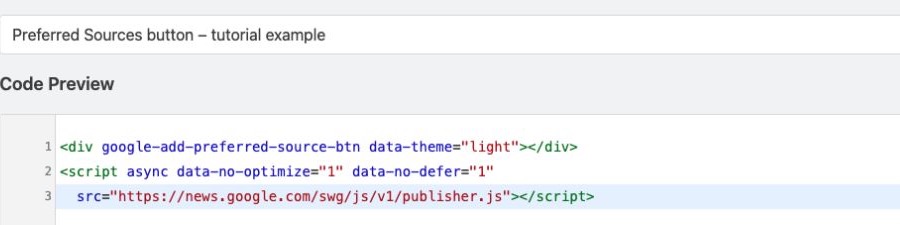
Add this code to the snippet editor:
<div google-add-preferred-source-btn data-theme="light"></div>
<script async data-no-optimize="1" data-no-defer="1"
  src="https://news.google.com/swg/js/v1/publisher.js"></script>
The container and Google-hosted script are the core of the official JavaScript implementation. The additional data-no-optimize and data-no-defer attributes are compatibility hints for the LiteSpeed setup used in this walkthrough. Other optimisation tools have their own exclusion controls.
If the website already loads publisher.js, keep that existing loader and add only the button container. Avoid loading a second copy for the same integration. Leave the language unset to use Google’s automatic localisation. For a dark background, change data-theme="light" to data-theme="dark".
Step 3: choose where the button appears
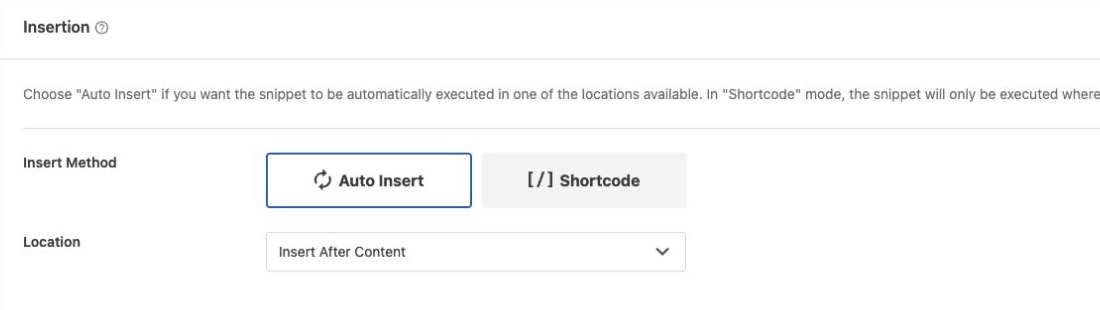
Under Insertion, select Auto Insert. Open the location picker, choose Page-Specific, then select Insert After Content.
This places the invitation after the article text. A shared insertion is easier to maintain than pasting the same code into individual posts. It also covers future articles using the normal post-content template.
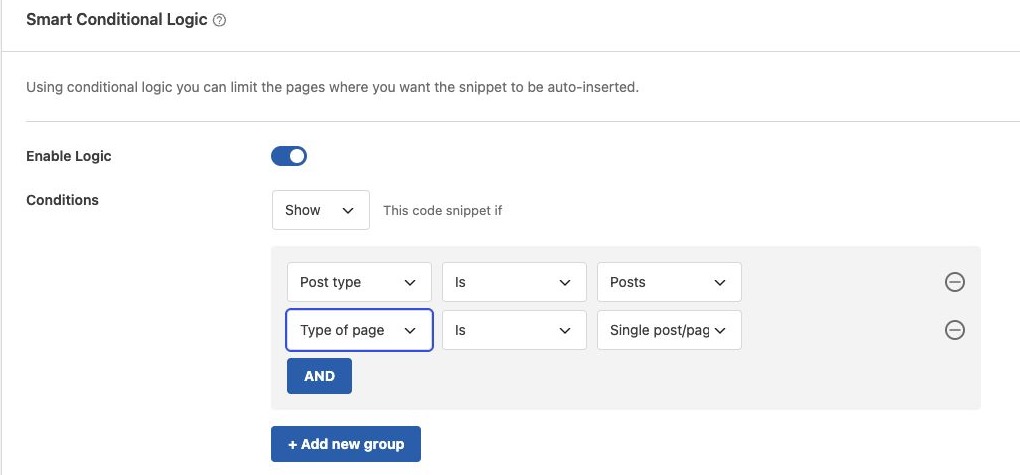
Step 4: limit the insertion to individual articles
Enable Smart Conditional Logic and choose Show. Put these two conditions in the same group, joined by AND:
- Post type → Is → Posts
- Type of page → Is → Single post/page
Keep Any device type selected. These rules keep the article invitation off ordinary pages and archive listings. If your publication uses a custom article post type, choose that type instead and test its template separately.
Step 5: activate, save and check the public website
Review the code and conditions, turn the snippet to Active, then click Save Snippet or Update. Clear the relevant website cache if the saved version does not appear.
Open an article in a private window or another browser where you are not logged into WordPress. Check an older article and a recent one. Confirm that:
- one invitation appears after the article content;
- the official button loads and is readable;
- the button fits on a narrow mobile screen;
- the article’s links, layout and other calls to action still work;
- the invitation has not appeared on unrelated pages.
If a developer has replaced the normal WordPress content template with a custom renderer, the insertion may need to be added to that renderer instead. Check the actual output rather than assuming every template uses the same content path.
How to add the button on another website platform
Use your platform’s supported custom HTML or code-injection feature. Put Google’s script on the page once and place the button container where readers finish an article. A shared article template or reusable component is preferable when you want the invitation on every article.
Google recommends loading the library in the page head where possible. A webmaster can keep that loader separate from the visible button. Check your platform’s current custom-code support before changing a theme or choosing a paid plan.
Use a direct link when JavaScript is unavailable
A normal link works in newsletters, social posts and places that cannot run the interactive button. Replace example.com with the eligible domain:
https://www.google.com/preferences/source?q=example.comFor a website link styled as a button, start with accessible link text:
<a href="https://www.google.com/preferences/source?q=example.com">
  Add us as a preferred source on Google
</a>
Readers may need to sign into Google and confirm their selection. Test that the link finds the intended website. A click on a promotional link is not the same as a completed preferred-source selection.
What if the button does not load?
| What you see | What to check |
|---|---|
| The domain is missing from Google’s selector | Check the domain spelling and whether it is a root domain or subdomain. Installing a button does not make an unavailable source eligible. |
| The button works for an administrator but is blank for visitors | Compare the public page with the logged-in version. Check script optimisation, caching, content-security rules and consent handling. Preserve Google’s library URL when excluding this script from incompatible processing. |
| Two buttons appear inside one article | Check for both a manual article insertion and a shared snippet. Keep one article insertion and one copy of the library. |
| The button appears only in the footer | Check the insertion location. Site Wide Footer and Insert After Content are different placements. |
| A direct link finds the wrong website | Replace the example domain and remove an article path or blog subdirectory from the preference query. |
On our tested LiteSpeed configuration, the optimiser replaced Google’s library with a local copy. Excluding this small integration from that processing restored the public button. Apply a narrow fix to the affected script rather than turning off all website optimisation. See LiteSpeed’s page-optimisation controls.
Will this help SEO, AEO or GEO?
Think of the button as a way to build a returning audience. It gives readers who value your articles a clear way to express that preference to Google. It does not replace useful content, crawlable pages, accurate business information or a website that works well.
For answer engine optimisation (AEO) and generative engine optimisation (GEO), make your articles easy to understand and verify: answer the main question early, explain the steps in order, use descriptive headings and link to reliable sources. Google says its existing SEO best practices remain relevant to AI features, with no special additional optimisation required. Read Google’s guidance on AI features and websites.
This particular preference is a Google feature. Adding the button does not set a reader’s preferences in ChatGPT, Claude or other independent services. For broader search improvements, start with the website and content work behind your SEO strategy.
How should you track results?
Check that Search Console emails are enabled under User settings → Email preferences. Google has sent preferred-source selection counts to some property owners by email; a regular reporting schedule or dedicated dashboard should not be assumed. Keep any dated counts you receive so you can compare like-for-like updates. Manage Search Console email preferences; see the reported selection-count email.
If you measure clicks on the direct link in your existing analytics, label them as button or link clicks. Do not report those clicks as confirmed additions, or attribute every subsequent traffic change to this one button.
Frequently asked questions
Can I add a preferred-source button for just my blog folder?
Use the eligible root domain or subdomain. You can place the button on blog articles, but a blog subdirectory is not a separate selectable source.
Do readers need a Google account?
Google may ask readers to sign in before saving their source preferences. Signed-in preferences can follow them across browsers using that account.
Can I use the button without WordPress?
Yes, where the website platform supports the required custom code. If it does not, use the direct preference link in an ordinary link or button component.
Can I match the button to a dark footer?
Use Google’s supported dark theme by setting data-theme="dark". Style the surrounding invitation to fit your website while keeping the official badge readable.
Will adding it guarantee more enquiries?
No. Its practical role is to make it easier for interested readers to choose your publication. Enquiries still depend on the relevance of your articles, the services you offer and the next step you provide.
Need help adding it to your website?
Grendesign can check the article template, add the button and test the public result across desktop and mobile. Talk to our team about your website.
Instructions and screenshots checked on 5 November 2026. Google and WordPress interfaces can change.