

A WordPress plugin update failed: plan a safe recovery process
If a plugin update breaks part of your WordPress website, pause further changes and establish what is affected before trying to fix it. The safest recovery is the smallest well-understood change that restores the required function without losing newer information.
Put the advice into practice
Keep the website behind your marketing dependable
Plan website care, hosting and maintenance around your actual website needs.
Discuss your website careWork out whether this is an incident or an incomplete update
“The update failed” can describe several different situations. WordPress might show an error while the public site still works. The site might be unavailable. Or the homepage might load normally while bookings, search or checkout no longer work.
Record the symptom rather than assuming the cause. Note the plugin, the versions involved if known, the approximate update time and what happened next. Include any error message, but remove credentials and personal information before sharing screenshots widely.
Check the affected customer journey from a normal visitor session. Do not repeatedly submit real purchases or bookings. Use an agreed test method, or ask the technical team to investigate without triggering external actions.
If customers could be charged without receiving an order, or submit information that will not be retained, escalate that function immediately. The appropriate temporary response may be to pause it and provide a clear alternative, rather than keep testing on live customers.
Stop adding variables
Resist the temptation to update several more plugins, change the theme and clear every setting in the hope that something helps. Each additional change makes it harder to identify what happened and to reverse it safely.
Nominate one technical lead and keep a short incident log. Record each action, its time and its result. This matters when the host, developer and plugin supplier are all involved, because otherwise two well-intentioned people can work against each other.
Preserve available error logs and a copy of the current state where the technical team can do so safely. A broken state can still contain valuable new orders or enquiries, as well as evidence needed to diagnose the fault.
Ask what else changed around the same time. A server software change, expired integration credential or unrelated service outage can coincide with a plugin update. Timing is a clue, not proof of causation.
Understand what Recovery Mode can and cannot do
WordPress Recovery Mode can help an administrator regain access in some fatal-error situations. WordPress may send the administrator an email with a recovery link. It does not automatically diagnose every failure or guarantee that the public website is fixed.
Treat the link as sensitive access information and use it only through the legitimate site and authorised administrator. If it does not arrive, the technical team may need another authorised access route.
Regaining access is an opportunity to investigate. It is not a reason to deactivate everything indiscriminately. Disabling a plugin might remove the immediate error while also removing a booking system, payment function or security control.
If you are not responsible for technical maintenance, hand the evidence to your provider rather than editing production files from a general tutorial. The correct action depends on the plugin, hosting setup and state of the update.
Choose a recovery path based on what changed
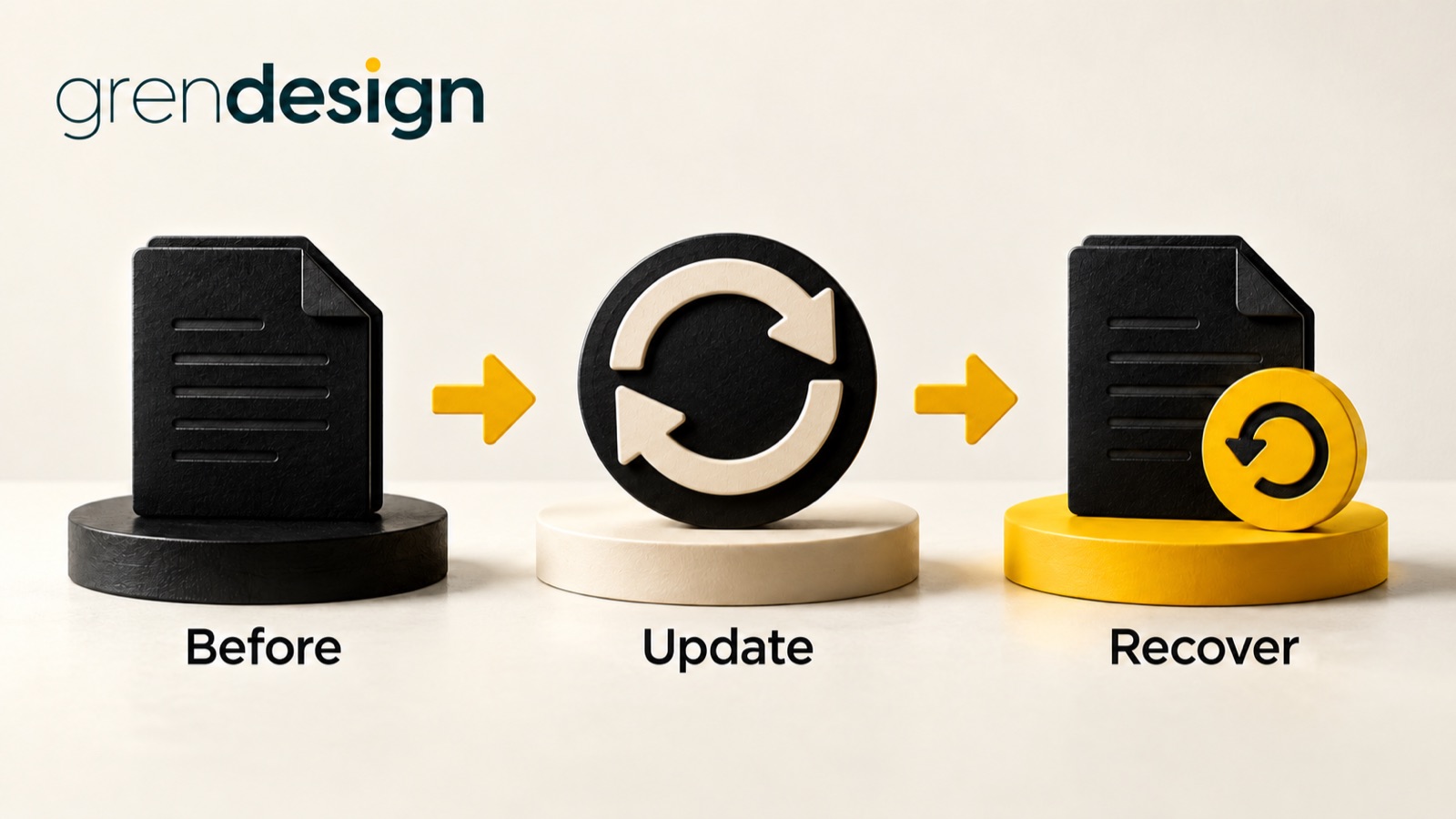
The technical team may have several options: correct an incomplete update, apply a verified fix, temporarily disable the affected feature, restore a compatible plugin version or restore a wider backup. Each has different consequences.
A plugin rollback can look attractive because it is narrower than restoring the whole site. But some updates change database structures or stored information. Replacing files with an earlier version may not reverse those changes cleanly. Check the supplier’s guidance and compatibility requirements.
A full backup restore has a different risk: it can replace newer business data with older information. Before approving that step, identify what has changed since the backup and how those changes would be preserved or reconciled.
WordPress’s upgrade guidance recommends having usable backups before updates. That supports recovery preparation, but it does not make every restore appropriate. The decision still depends on what the backup contains and what happened afterwards.
Make the data decision explicit
Consider a hypothetical shop where a plugin update happens at 9 am and the problem is found at 11 am. Restoring the previous night’s database could remove the morning’s order records, even if payments remain recorded by the payment provider.
Someone needs to assess those differences before recovery proceeds. That may involve pausing new transactions, preserving current records and reconciling the recovered site with external systems. The method should be chosen by the people who understand the ecommerce setup.
A service business has a similar issue if enquiries are stored only in the website database. A restore that fixes the form but removes the latest enquiries is not a complete business recovery.
Ask the recovery lead to state the proposed data impact in ordinary language: what will be replaced, what will be retained, what might need manual reconciliation and who will check it. Avoid approving “restore everything” without that explanation.
Verify the repaired journey before reopening it
After the technical change, test the original failure and the important functions connected to it. A plugin involved in forms might affect notifications or CRM routing as well as the visible fields.
- Repeat the original test using labelled dummy data.
- Confirm the expected record exists in the correct place.
- Check downstream notifications or integrations through safe test routes.
- Review relevant mobile behaviour and logged-in access.
- Confirm error logs no longer show the same failure.
- Check whether temporary restrictions or notices should now be removed.
Record what was actually verified and any remaining limits. If a temporary workaround restores enquiries but leaves an optional feature disabled, say so. “Working with a known restriction” is more useful than a broad green tick.
Keep an eye on the affected function over an agreed period after recovery. Some problems appear only when a scheduled task runs or a particular customer path is used.
Finish the fix, not just the outage
A restored older version may be a temporary measure, especially if it lacks a relevant security fix. Assign an owner and review date for reaching a supported, tested configuration. Don’t let a successful emergency workaround become an undocumented permanent arrangement.
Capture the lesson in the update process. That might mean checking a particular integration in staging, allowing more time for a major release, improving backups or making the administrator contact address accessible to the right people.
For website maintenance, clarify who responds to update failures and what recovery work is included. The goal is a calm, agreed process: preserve evidence, protect business data, recover the function and resolve whatever remains.